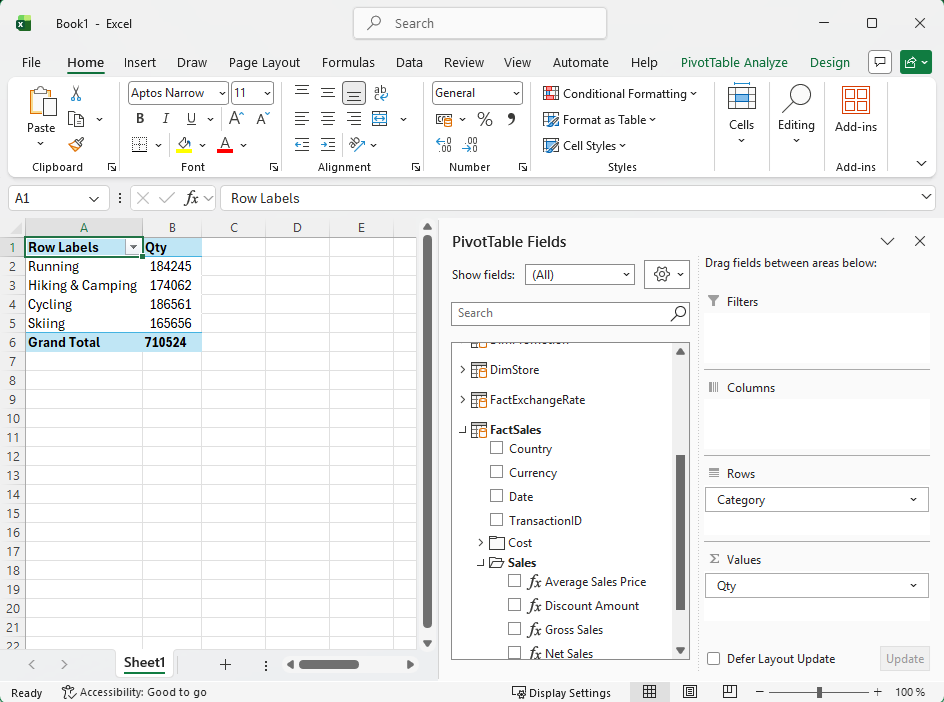
Connecting Excel to a Self-Hosted XMLA Endpoint
One of the primary goals of DAX-rs is to ensure compatibility with the core BI infrastructure, so connecting Excel to your self-hosted DAX server can be done in a few steps.
However, please be aware that connecting through Excel, at the time of writing, is still in alpha and will need more development before it is stable.
Setting up a simple backend
If you do not already have your own backend running, you can quickly and easily set up a server with some demo data, as long as you have Docker running.
If you do not have Docker installed, you can find instructions on how to set up Docker Desktop on Windows, Linux and Mac.
After Docker has been set up we need to download the DAX-rs container image:
docker pull ghcr.io/daxrs/dax-rs:latest
Once the download is complete, we run it, telling it to generate demo data and expose it on port 3000:
docker run --rm -p 3000:3000 -e DEMO_DATA_SEED=42 ghcr.io/daxrs/dax-rs:latest
That is all there is to it, we now have DAX-rs running.
Connecting through Excel
To connect it to Excel, we start Excel and create a new worksheet. We then click on “Get Data” and select “From Analysis Services”:
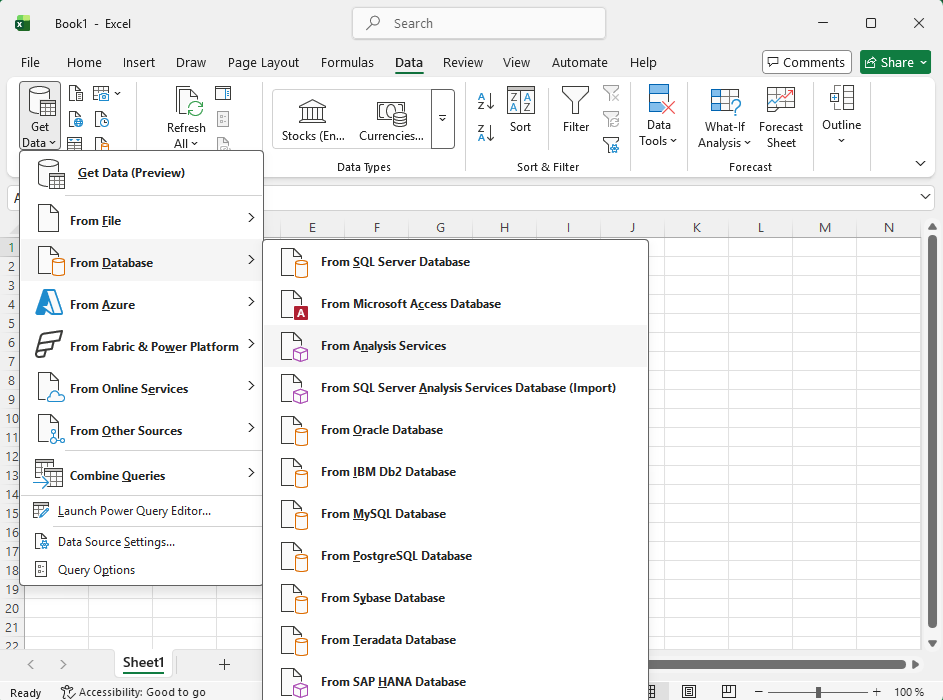
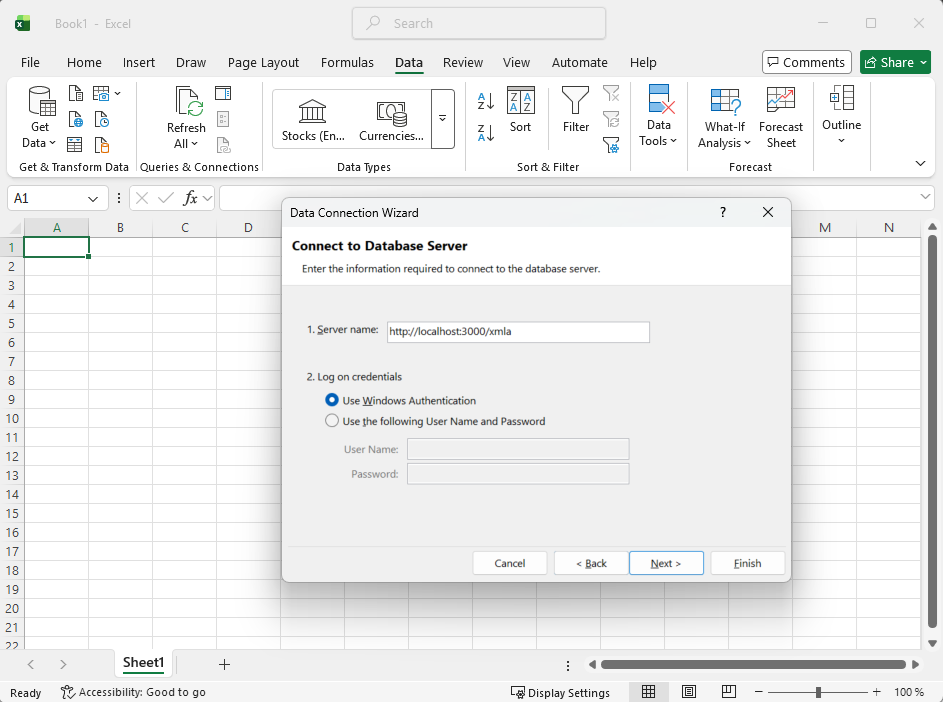
This will present you with a connection window.
If you are connecting to a server running on the same machine, you enter http://localhost:3000/xmla.
If you are connecting to the server from a different PC, you have to replace localhost with the IP address of the server machine.
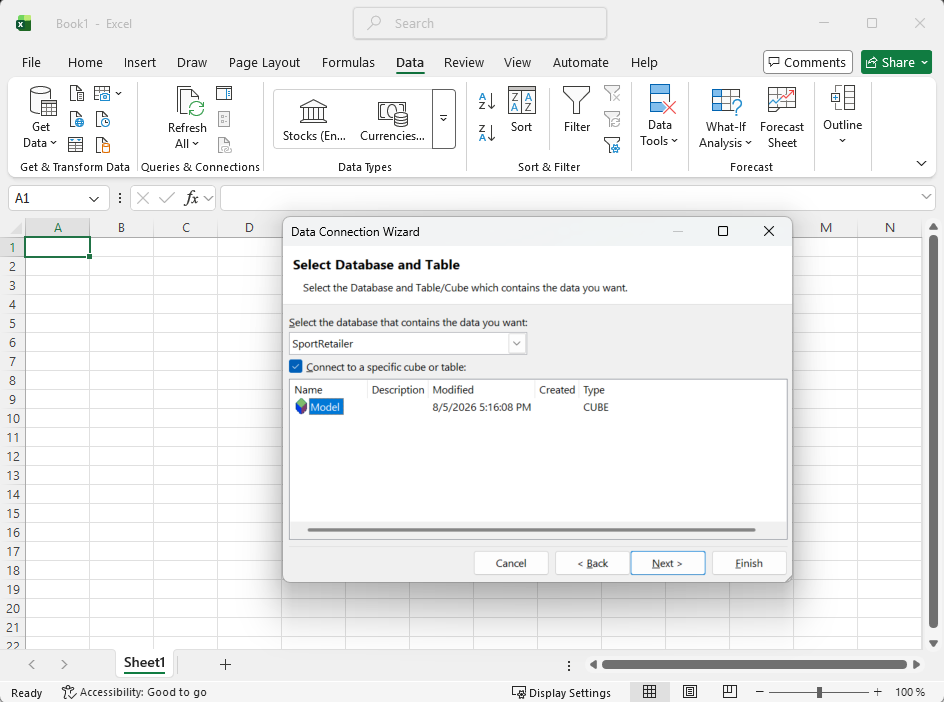
After clicking Next, you will be presented with a list of the catalogs available on the server. If you are using the demo data, select SportRetailer -> Model and click Next.
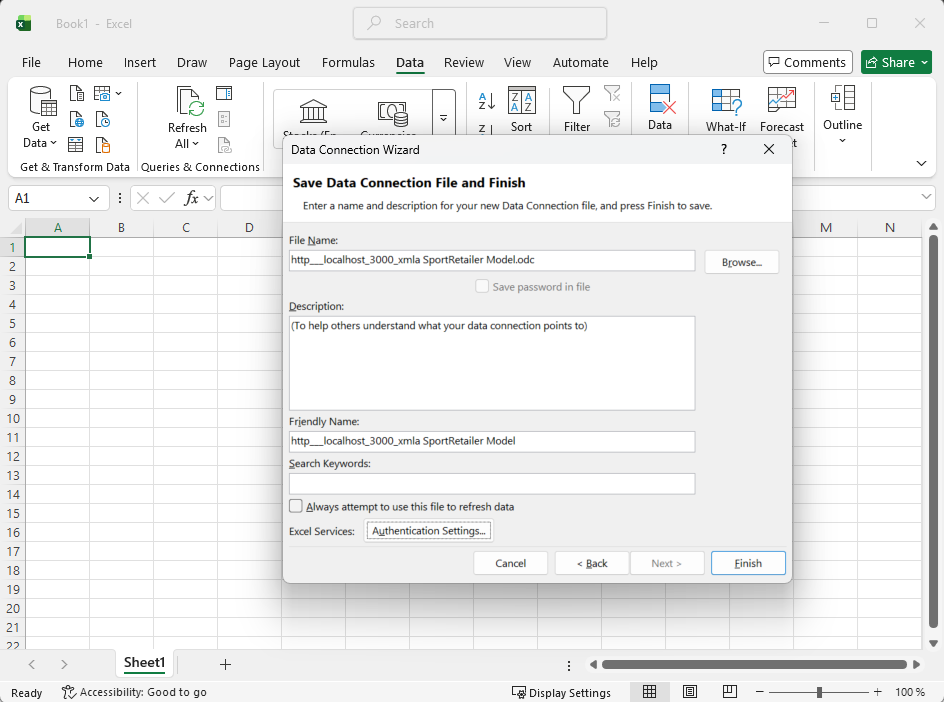
You are presented with a window, where you can choose to save the connection information, so that you do not have to fill out all the information again. You can also rename the connection file. Press Finish.
That is it! You now have access to the full data model and can play around with building reports in Excel.